Here’s what’s new at Podium
Automations Management and Tagging
Search automations by name, filter by source, message type, and status (Active or Inactive). Assign or remove custom tags with multi-select bulk actions.
Voice AI Greeting Management
Manage Regular and After-Hours greetings in a new Greetings tab in AI Studio, and create temporary greeting overrides for special events, holidays, and promotions.
Use Operator to make bulk AI changes
Use Operator to make a single change across your entire AI agent fleet. Operator can kick off trainer agent runs and find relevant messages to give the trainer agent.
Voice AI can read texts and images sent during a call
Voice AI can read a text message or image sent to it during a call and use it to move the conversation forward. This is especially helpful when gathering details like an address over SMS instead of verbally.
Voice AI Coaching
Give your AI employee feedback, and the trainer agent works to make sure your AI employee follows it. This makes configuration and coaching easier and more precise.
Conversation Review in AI Studio
A new “AI performance review” gives you a weekly bundle of interesting conversations to look at, give feedback on, and use to measure improvement over time.
AI employee self-scheduling tasks
Your AI employee now automatically schedules its own tasks. Your AI employee manages a to-do list for each lead and assesses recent activity to decide whether the follow-up still makes sense.
Natural Voices
An updated version of the voice models improves the naturalness and quality of Voice AI across every voice.
Tone Selector in Voice AI Studio
More fine-tuned adjustments to how your agent responds to callers are available in AI Studio.
Warm Transfers for Voice in AI Studio
When your Voice Agent transfers a call, it can first call a team member, tell them who is calling and why, and connect the caller once they press 1. If no one accepts, the agent offers to take a message instead of sending the caller to voicemail.
Translation
Customer messages and your AI employee’s messages in other languages show up in English automatically.
Auto
Follow Up When Shoppers Are Ready
When a shopper says they’ll know their schedule on Saturday, Jerry can plan a follow-up for Saturday afternoon. His new self-managed to-do list helps him follow up based on the conversation, giving your team less to remember.
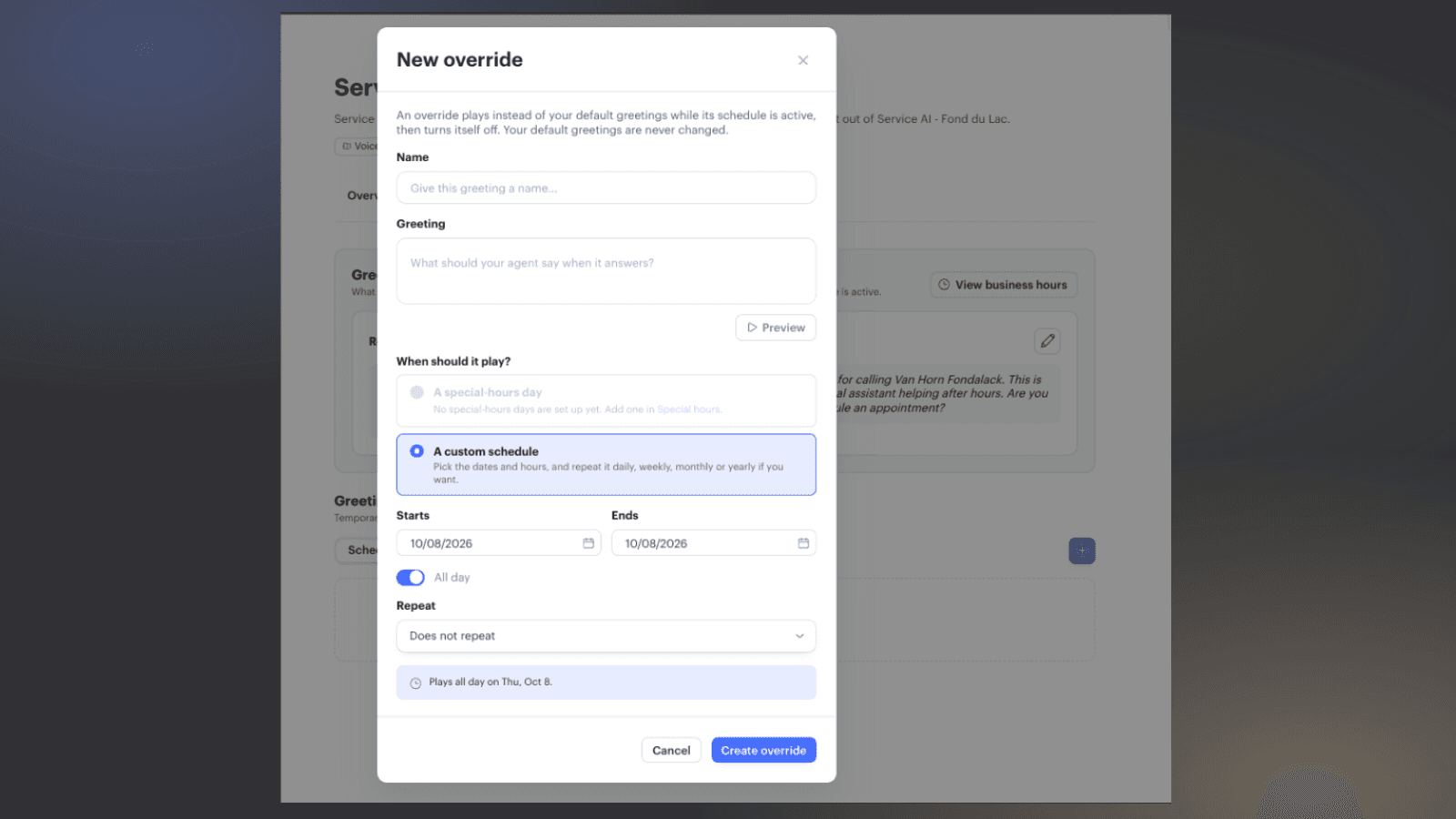
Customize Your Voice AI Greetings
Manage your regular, after-hours, and department greetings in AI Studio. For holidays, promotions, or a day your dealership is closed, schedule a temporary greeting with an end time. Your default greeting returns automatically when it ends.
You can also test a greeting for a specific date in Sandbox before it goes live.
Where to find it: AI Studio → Your Voice Agent → Greetings.
See What Your Voice AI Is Handling
See total calls, how often your agent resolves calls without a transfer, and caller satisfaction scores. Select an outcome, task category, or satisfaction rating to review the calls behind it and see where callers need more help.
Where to find it: AI Studio → Your Voice Agent → Overview.
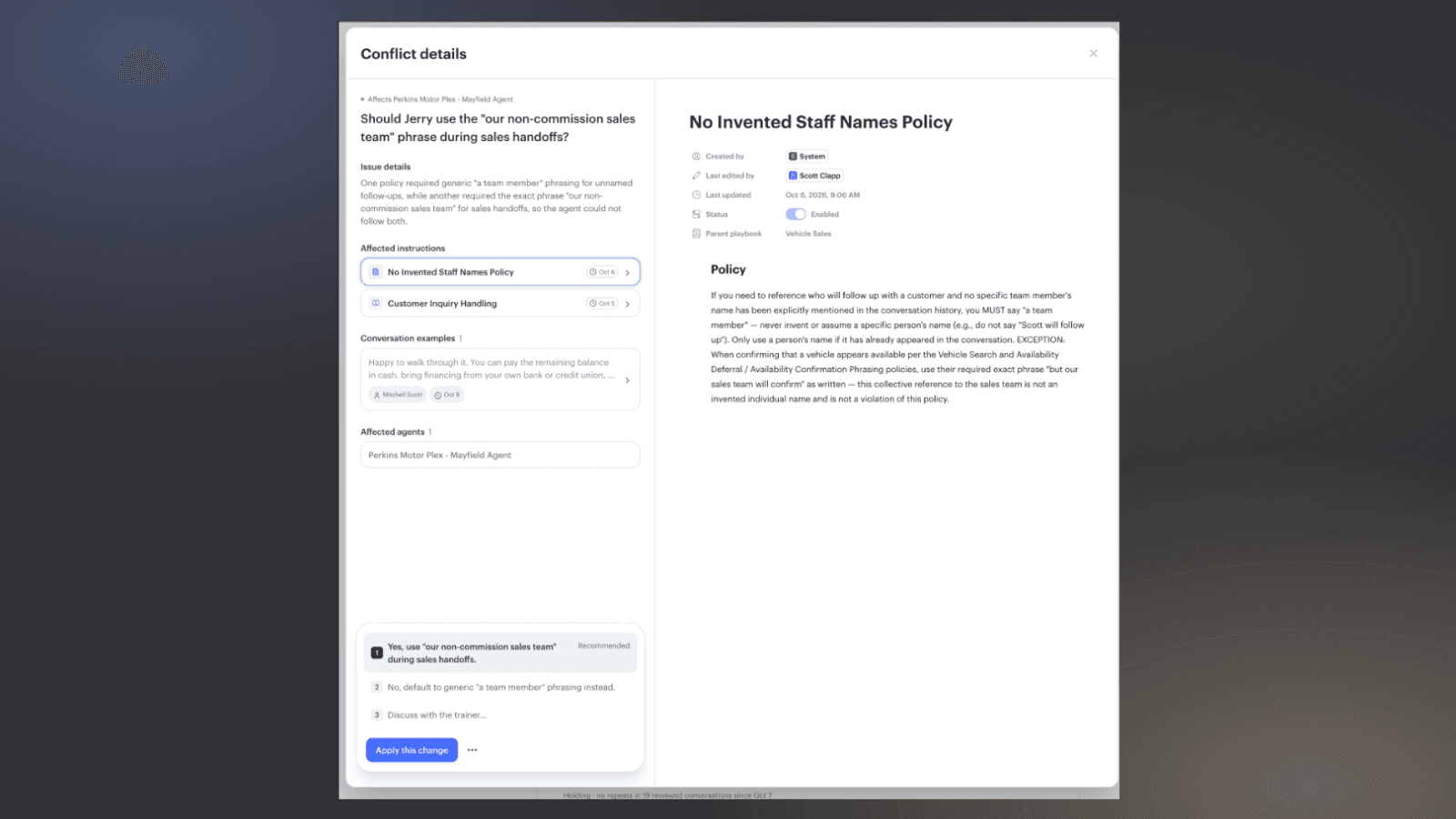
Find Conflicting AI Instructions
The new Insights area in AI Studio flags problems like contradictory instructions and recommends fixes to help your AI respond more consistently. Recommendations appear when there’s an issue to review.
Where to find it: AI Studio → Insights.
Catch Vehicle Inventory Issues Sooner
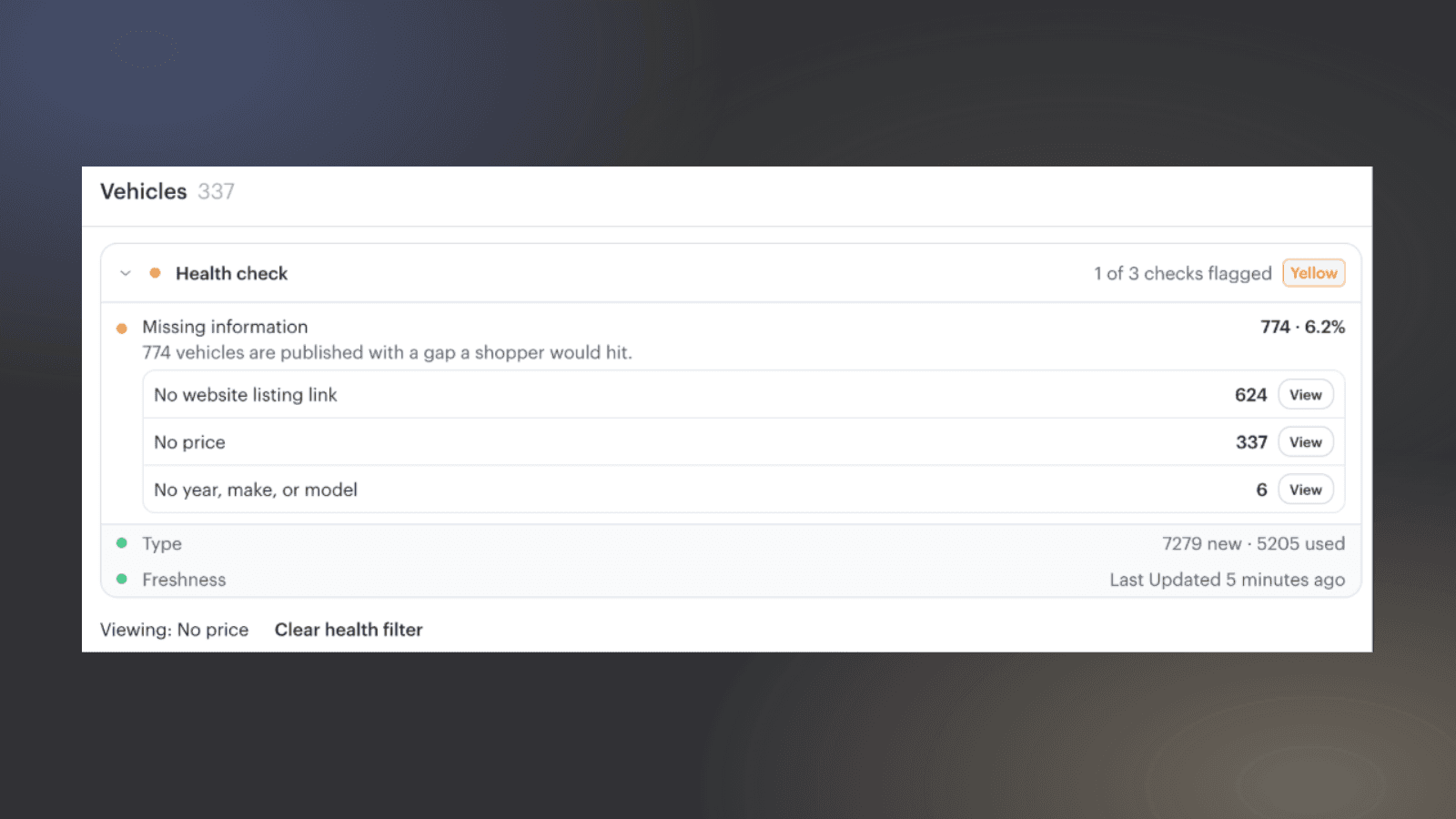
Inventory Health Check flags missing prices or vehicle links, inventory that hasn’t updated, and missing new or used vehicle categories.
Where to find it: Your Vehicles page.
Keep AI Texts Easier to Read
Jerry can now split longer replies into multiple shorter messages, making it easier for shoppers to read and respond.
Continue Calls by Text
If a customer hangs up before finishing, leaves an action incomplete, or asks to switch to text, Voice AI can hand the conversation to Jerry to keep it moving.
Customers can also text a VIN, address, or photo during a Voice AI call. The agent can use those details right away, so callers don’t have to spell out a long VIN or explain something a photo could show.
These features are enabled for new users. Rollout to existing users is in progress.
Manage WhatsApp Conversations in Podium
Customers can now message your dealership on WhatsApp, and your team can respond from the same Podium inbox you already use.
Updated Price Responses for California Dealerships
Jerry’s playbooks for California dealerships now include updated guidance for responding to leads with vehicle pricing.
HVAC
Inventory management
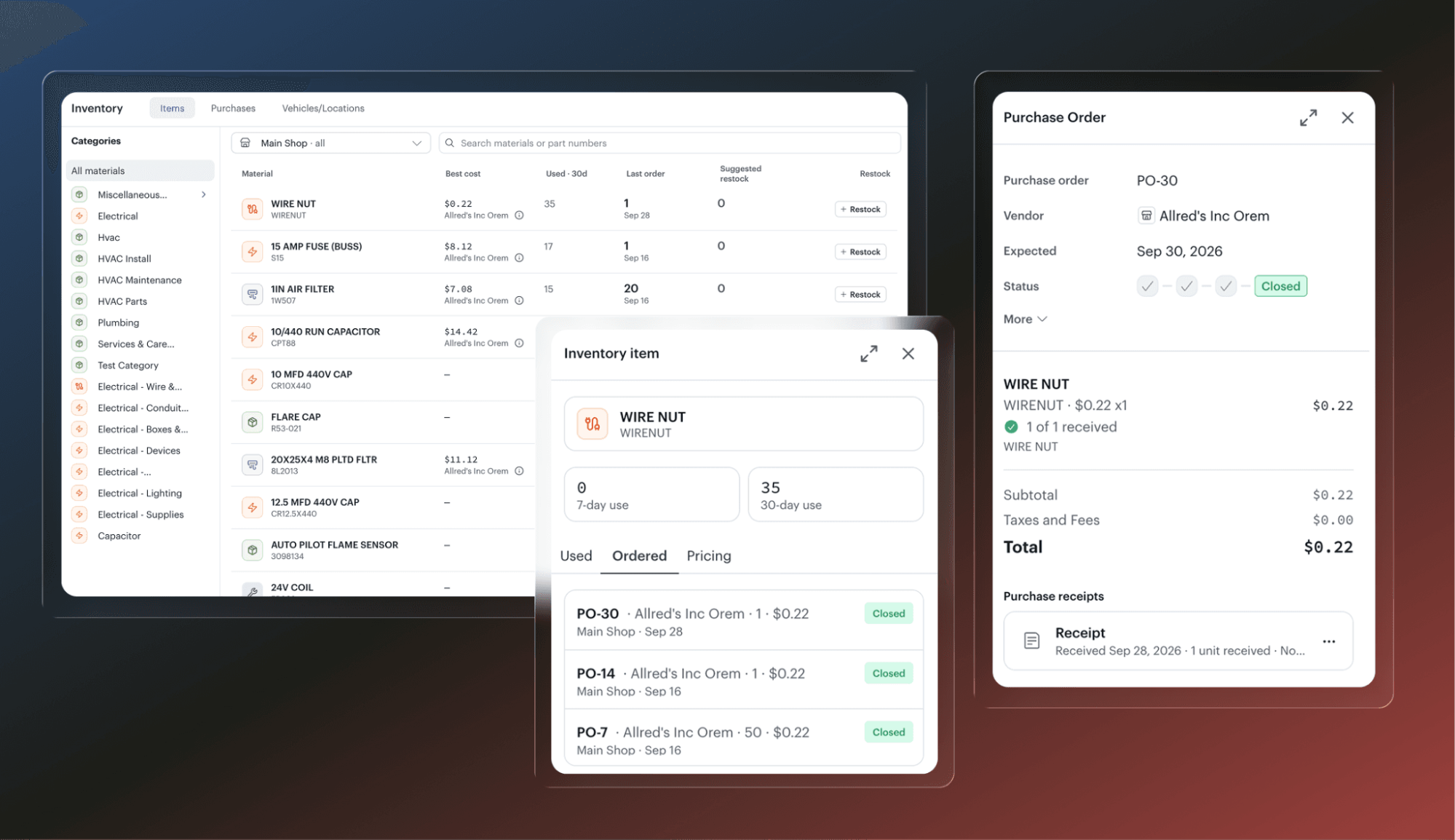
See which materials your techs used based on the services they invoice, with materials linked in your price book. Review usage by truck or across the shop, compare supplier pricing, and build draft purchase orders grouped by supplier. Track deliveries, including orders that arrive in separate shipments.
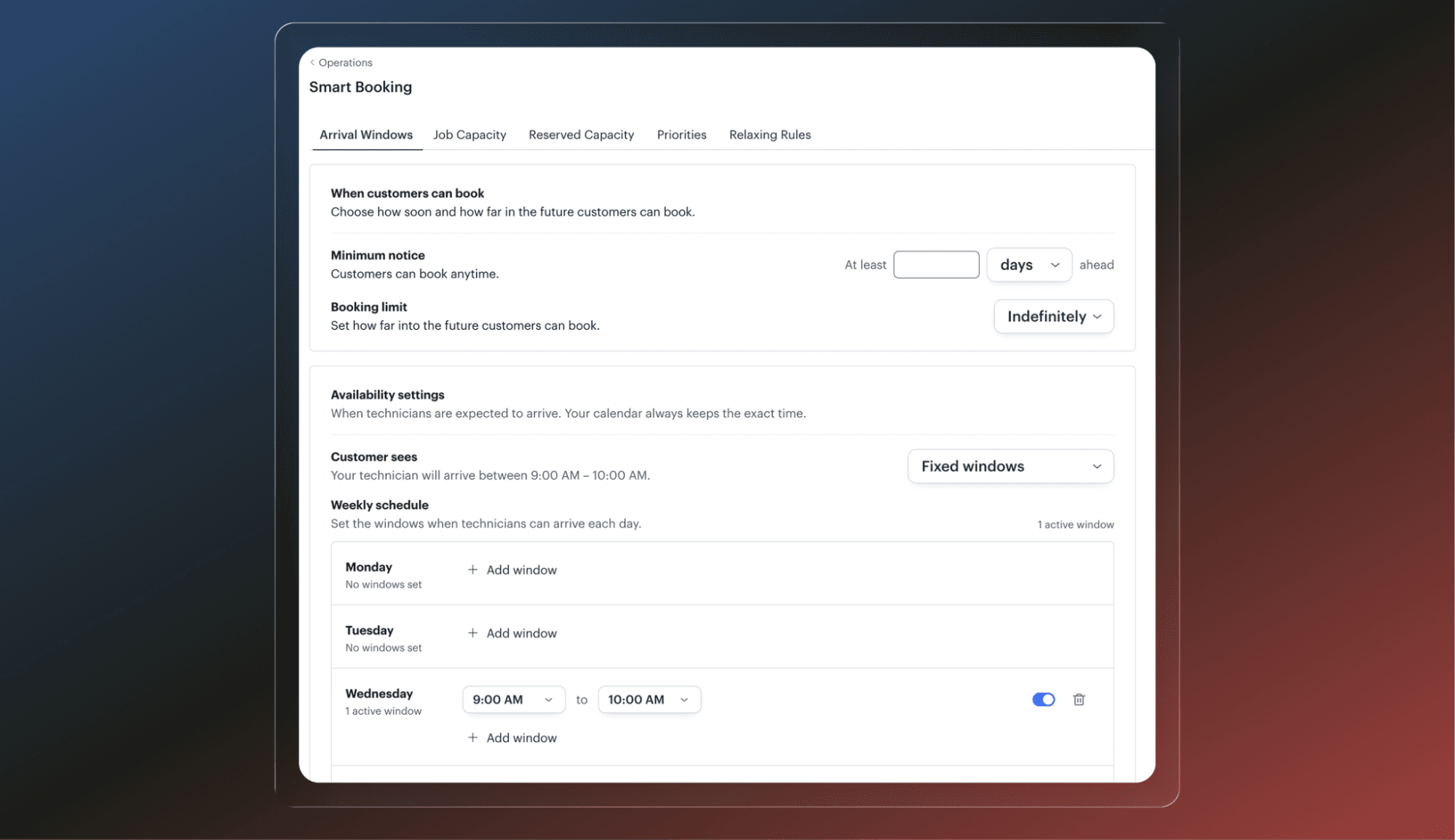
Smart booking
Choose which appointment windows customers are offered and which ones come first. Reserve time for emergency calls or limit how much of the schedule one job type fills. Prioritize the earliest opening, the best-fit tech, nearby jobs, or filling gaps in the day.
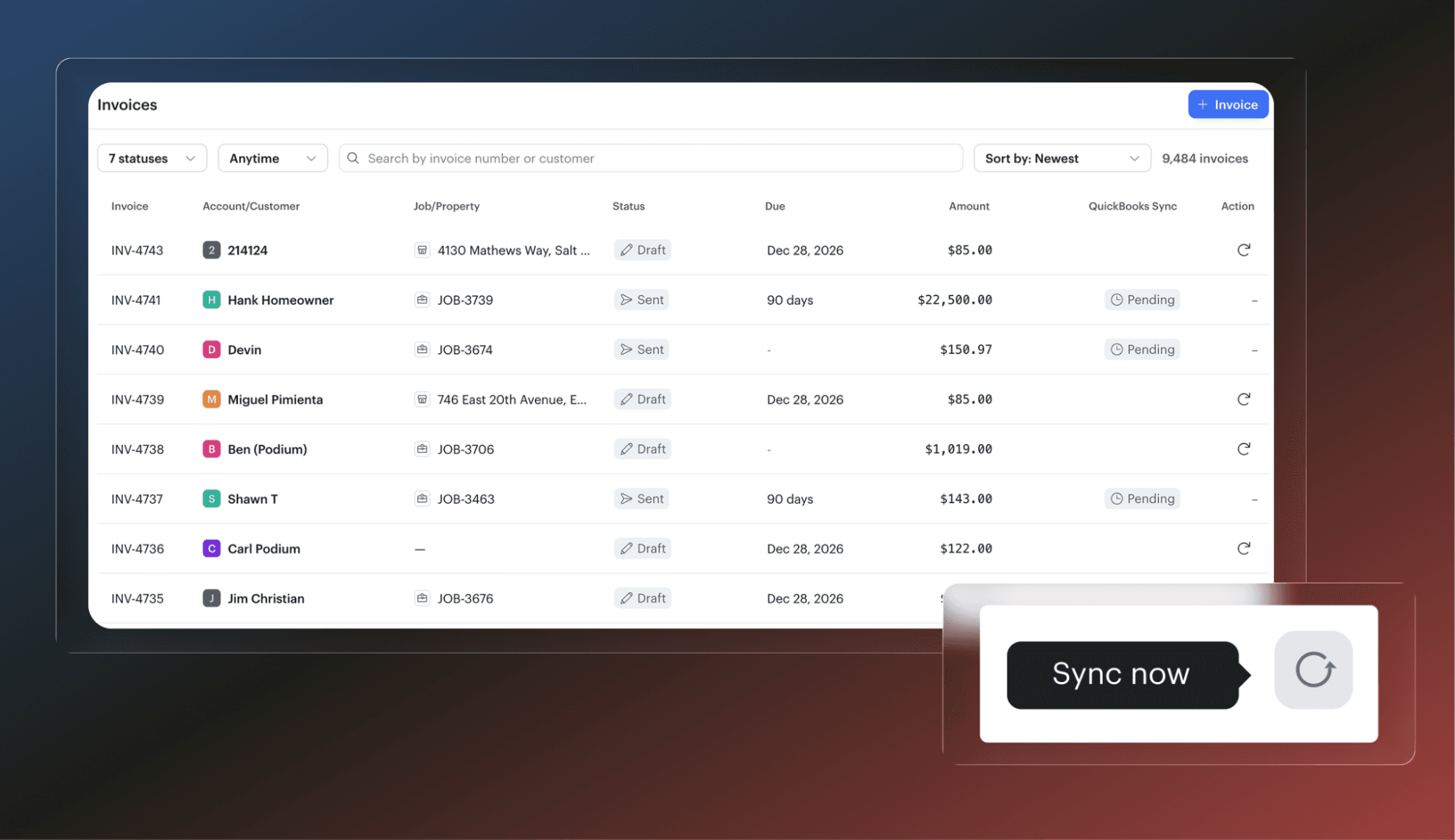
QuickBooks Desktop
Connect Podium to QuickBooks Desktop with our new integration built by Podium. Invoices sync after you send them to a customer. See each invoice’s sync status from your invoice list, review any errors, and retry a failed sync from there.
New in AI Studio
See how your AI employee, Larry, is handling calls, hear what customers think, and fine-tune the instructions Larry follows.
- See what happened on each call: Find out how many calls Larry handled, which needed a person, and what needs follow-up.
- Hear from your customers: See how callers rated their experience, read their feedback, and listen to the call.
- Review calls faster: Speed up recordings or jump straight to the part you want to hear.
- Read calls in English: If a customer spoke another supported language, translate the written conversation into English.
- Clear up mixed instructions: If two instructions tell Larry to do different things, Insights flags the conflict so you can choose what Larry should follow.
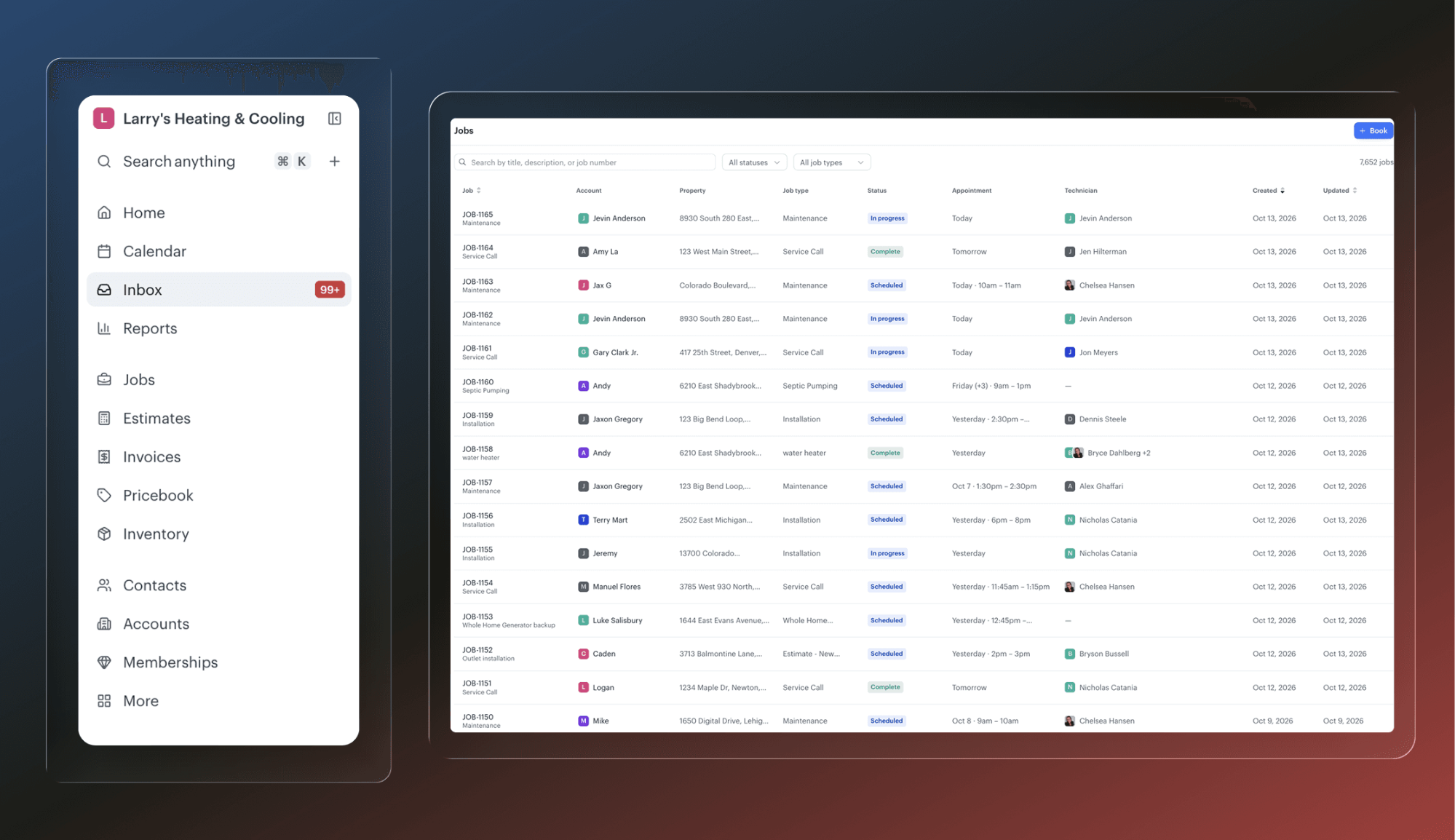
Find jobs from a dedicated Jobs page
Find and open jobs from one dedicated page in Podium FSM. Search by customer or job number, or filter by status or job type. We’ve also grouped related items together in the navigation menu and moved Reports into the main section.
More control over calls with your AI employee, Larry
Choose how your AI employee, Larry, greets callers and give feedback on how Larry handles specific situations.
Customers can text details during a call
Customers can text their service address or send a photo while talking to Larry. Larry reads what they send and uses it in the conversation.
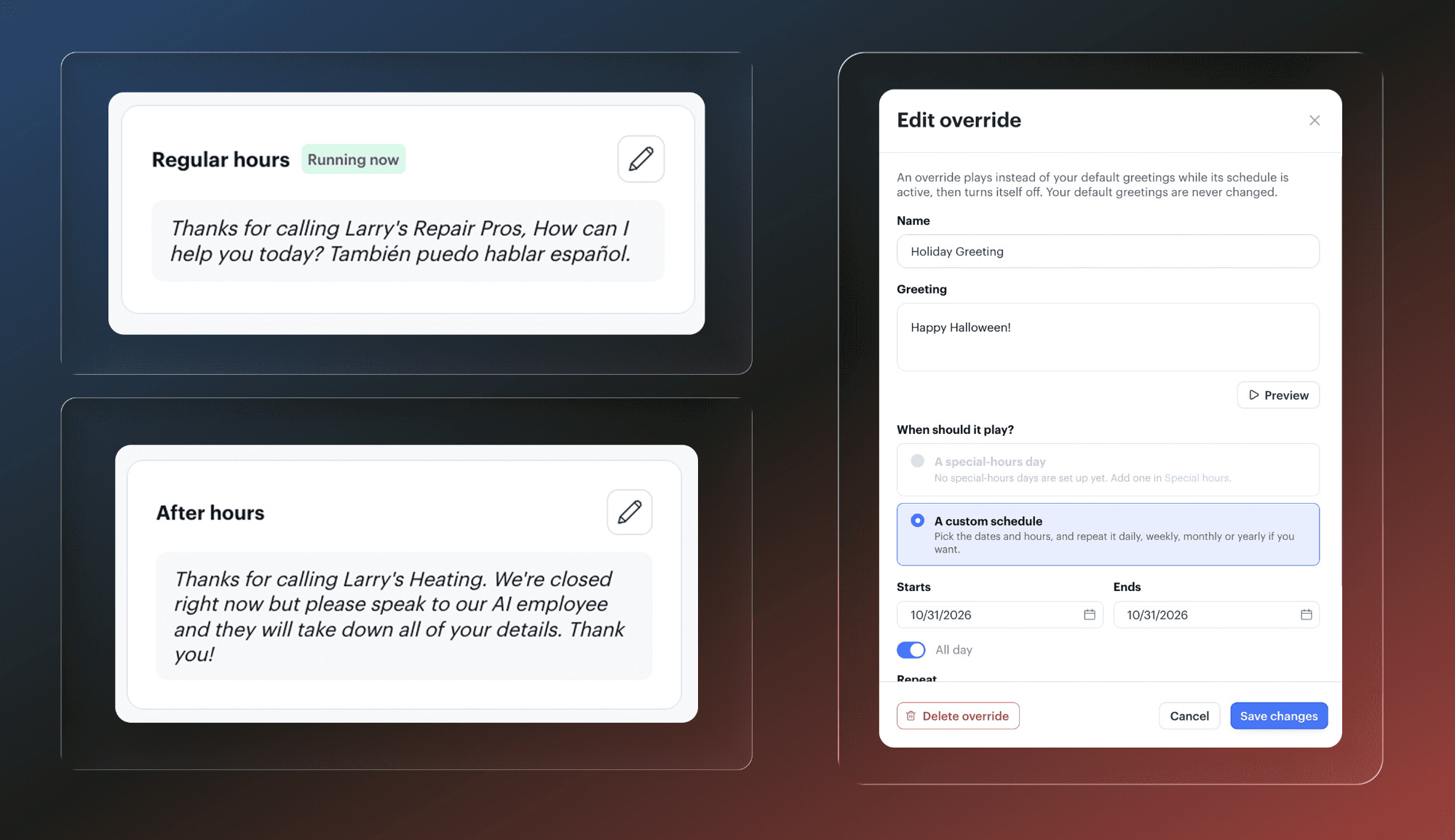
Set business-hours, after-hours, and temporary greetings
Manage business-hours and after-hours greetings in AI Studio’s Greetings tab. For holidays, promotions, or special events, set a temporary greeting with an end time. Your default greeting returns when it ends.
Coach Larry on call responses
Give feedback on a specific call response or describe how you want Larry to handle a situation in AI Studio’s Coaching section. Coaching checks your instructions, price book, and call transfer destinations, then recommends changes for you to review and apply.
Start coaching changes across multiple AI agents
Ask Operator to start the same coaching change across your AI agents in one request. Operator finds relevant conversations for each agent to use during coaching.
See how commissions were calculated
The updated commissions table makes totals and the calculations behind them clearer to read.
MedSpa
Chart Without an Appointment
Document weight loss check-ins, peptide follow-ups, and any other encounter without needing a scheduled visit on the calendar.
Live on desktop now, coming soon on mobile.
Where to find it in Podium: Client Profile → Charts → Click + and select chart template
Book Now with Google
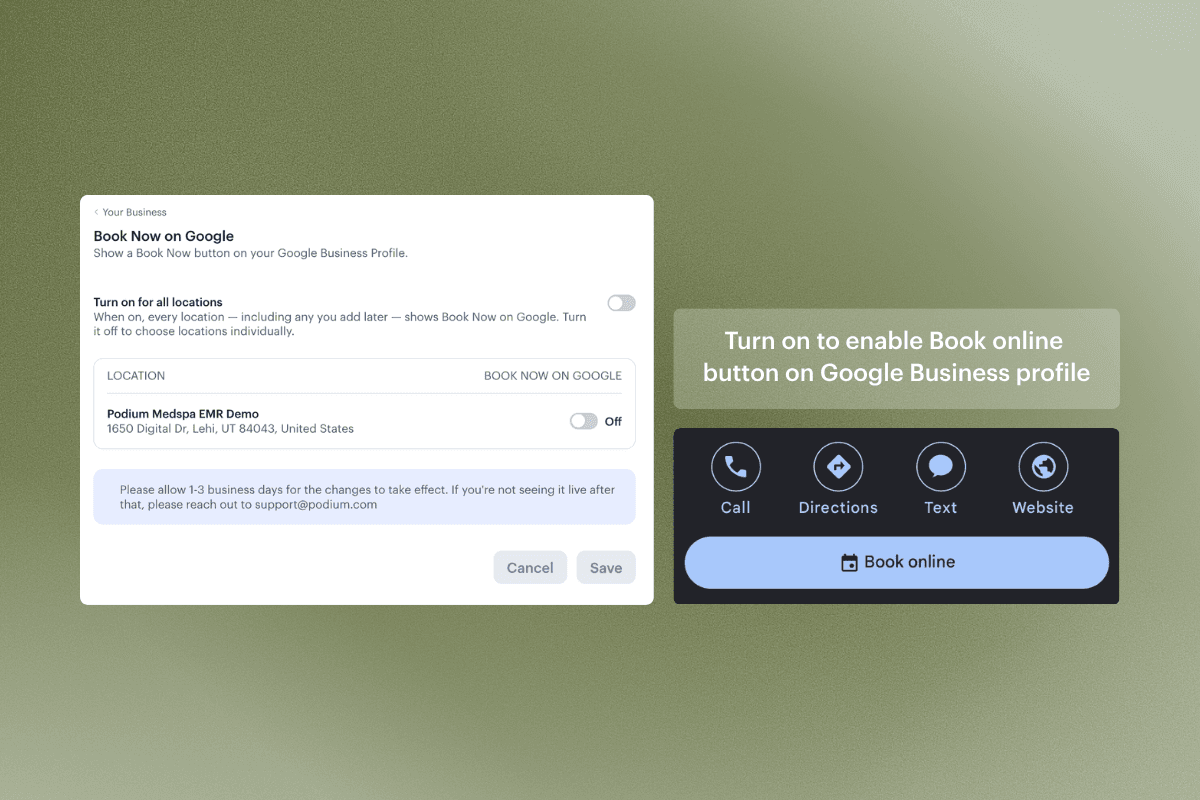
Turn Google Search and Maps into a new booking channel. Enable it and a “Book online” button appears on your Google Business Profile, linking straight to your Podium booking page.
Where to find it in Podium: Settings → Your Business → Book Now on Google
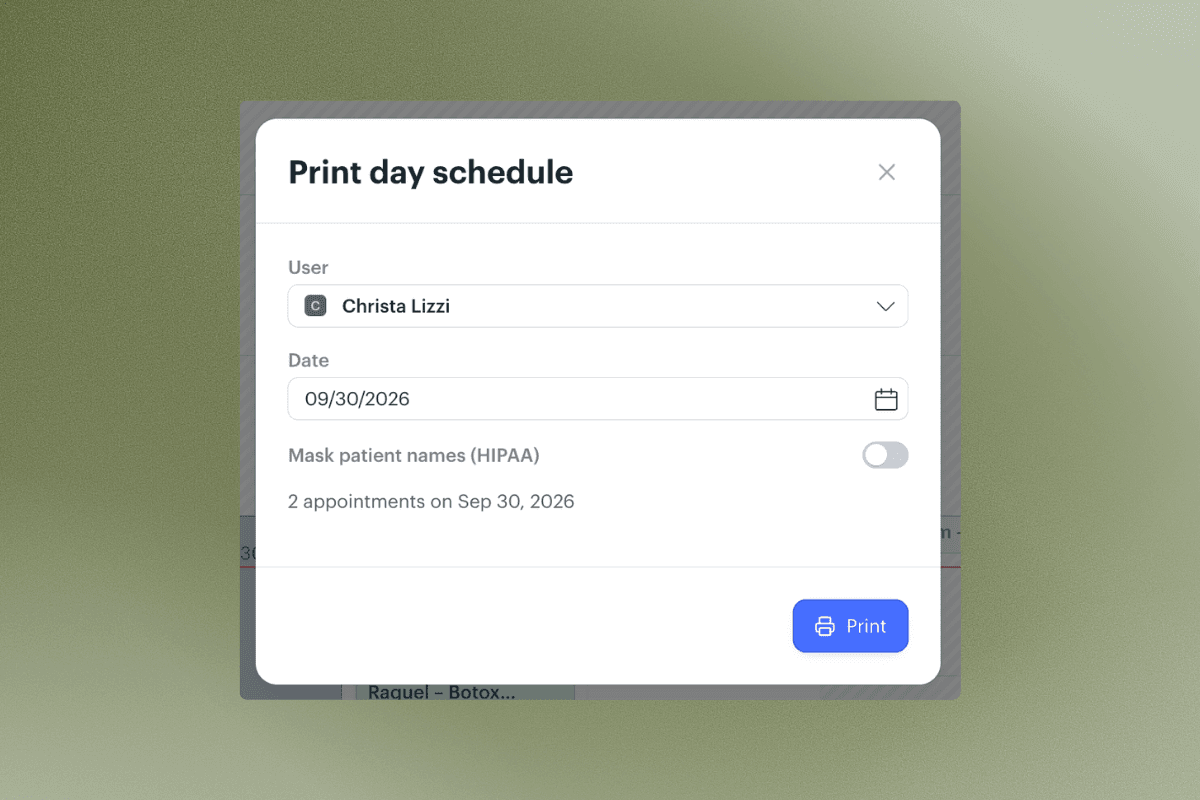
Print Daily Schedules
Print a provider’s full day with services, client names, and space for handwritten notes. Useful for providers who like a paper backup or work between rooms.
Where to find it in Podium: Calendar → Print
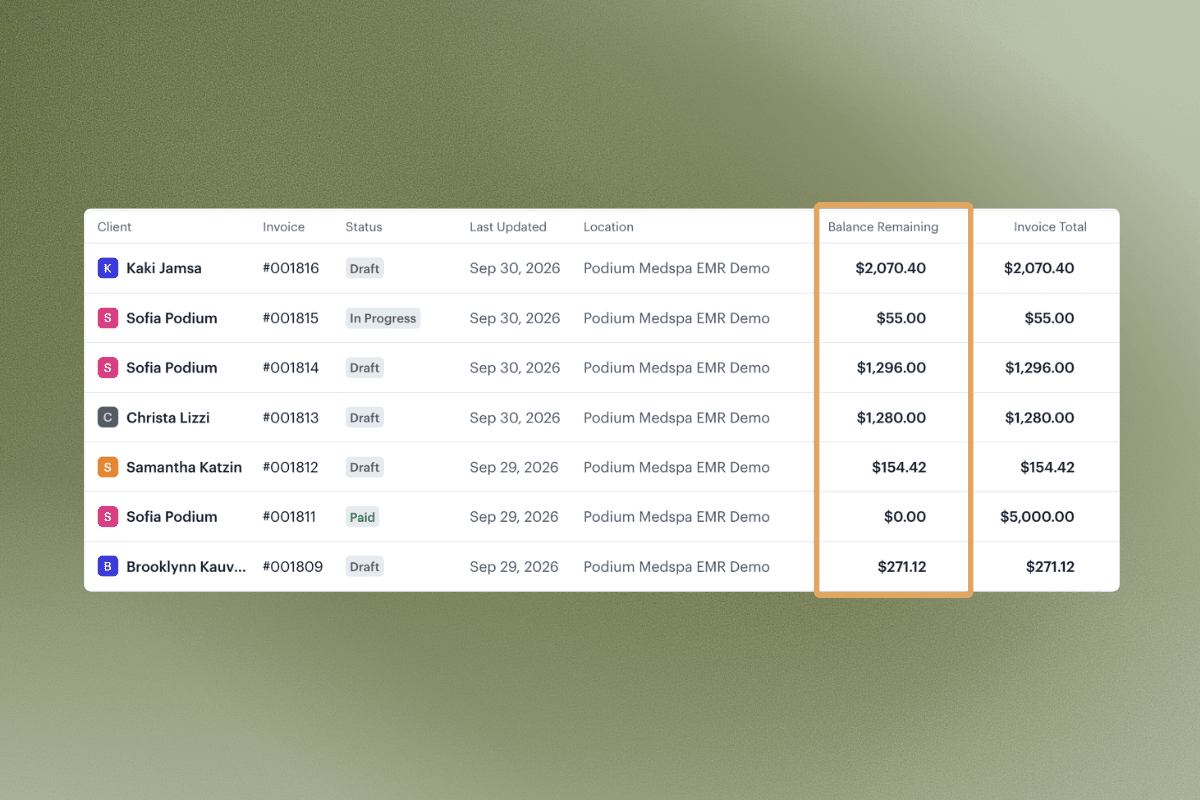
See Remaining Balances on Invoices
The invoice list now shows outstanding balances at a glance, so unpaid and partially paid invoices are easier to spot and chase down.
Where to find it in Podium: Payments → Invoices
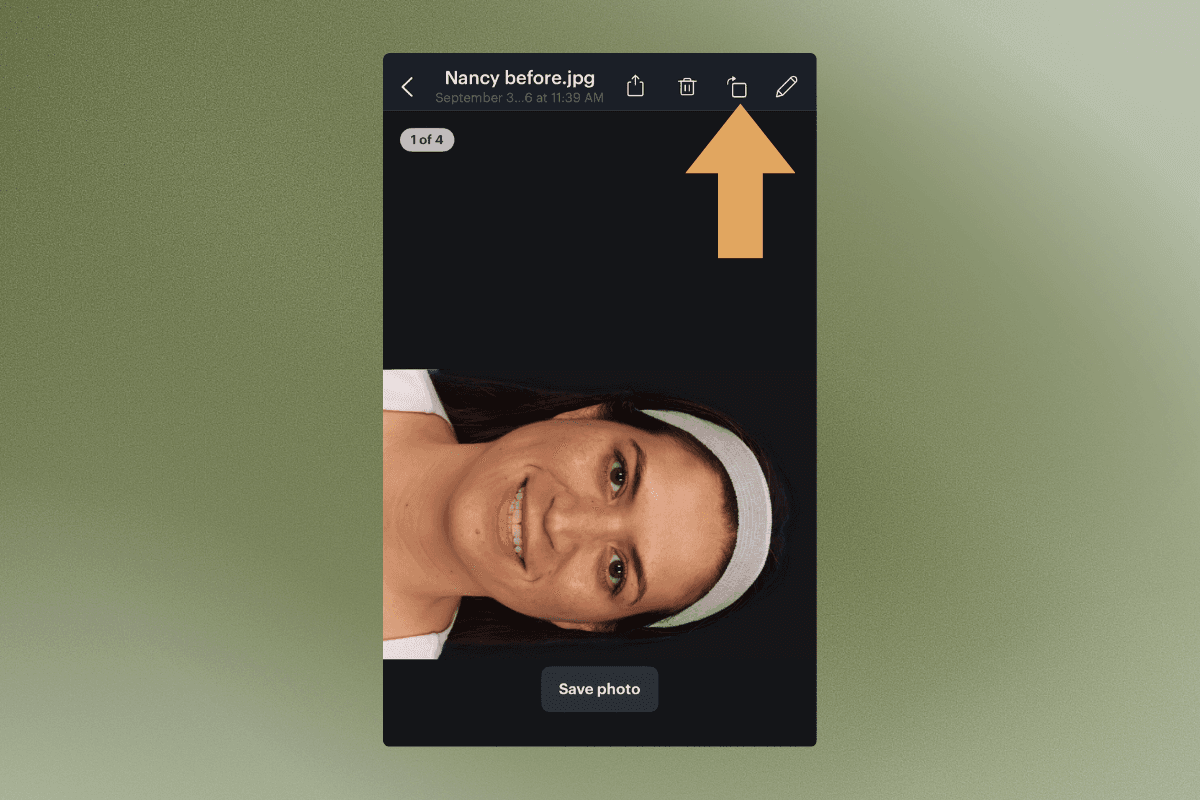
Rotate Photos on Mobile (App Update Required)
Fix sideways or upside-down client photos right from the mobile app. Take or upload a photo and click the rotate icon.
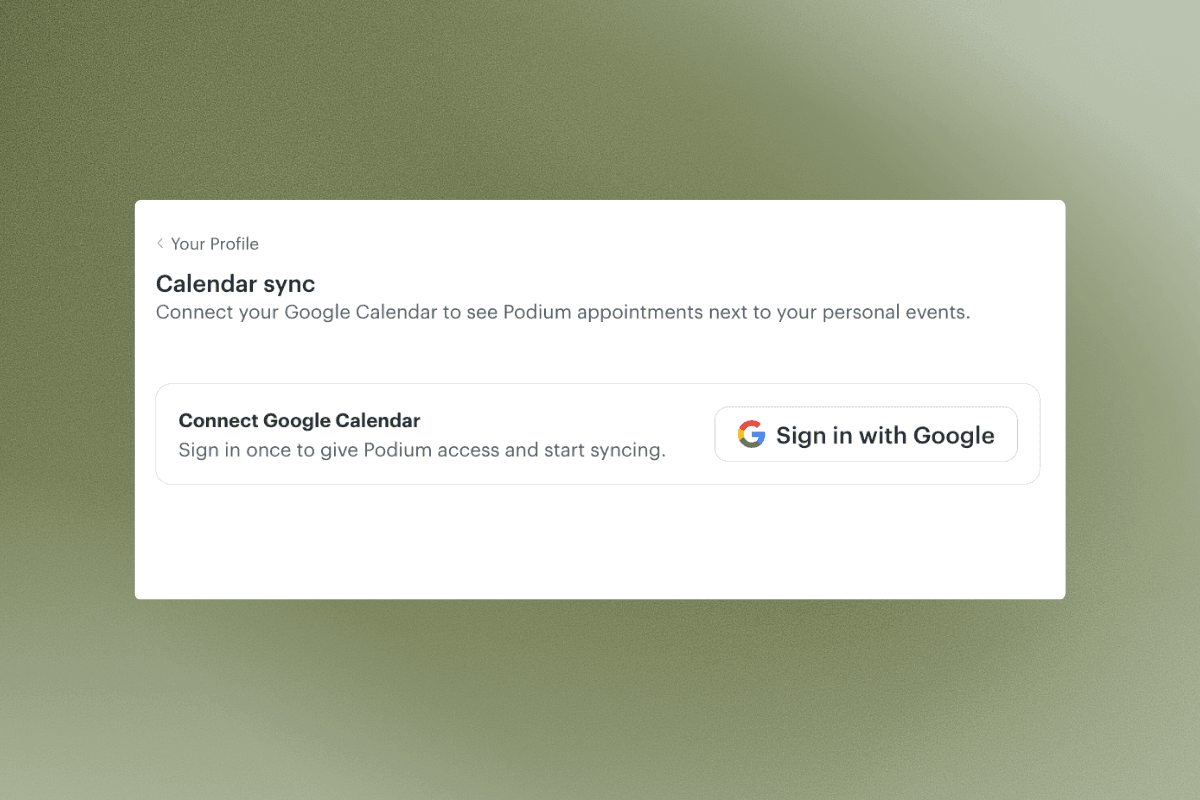
Google Calendar Sync
See your Podium appointments on the calendar you already check. Connect one or more Google accounts and events show up within a minute.
Where to find it in Podium: Settings > Your profile > Calendar sync
Cleaner Printed Charts
Chart downloads now lead with the client name, email, patient ID, chart name, and practice details, so they’re ready to hand off or file after printing. Photos no longer take over the whole page.
Where to find it in Podium: Open saved chart → Click (⋯) three dot menu at the bottom → Download chart
Chart Without an Appointment (Now on Mobile)
Document weight loss check-ins, peptide follow-ups, and any other encounter without needing a scheduled visit on the calendar.
Where to find it in Podium: Client Profile → Charts → Click + and select chart template
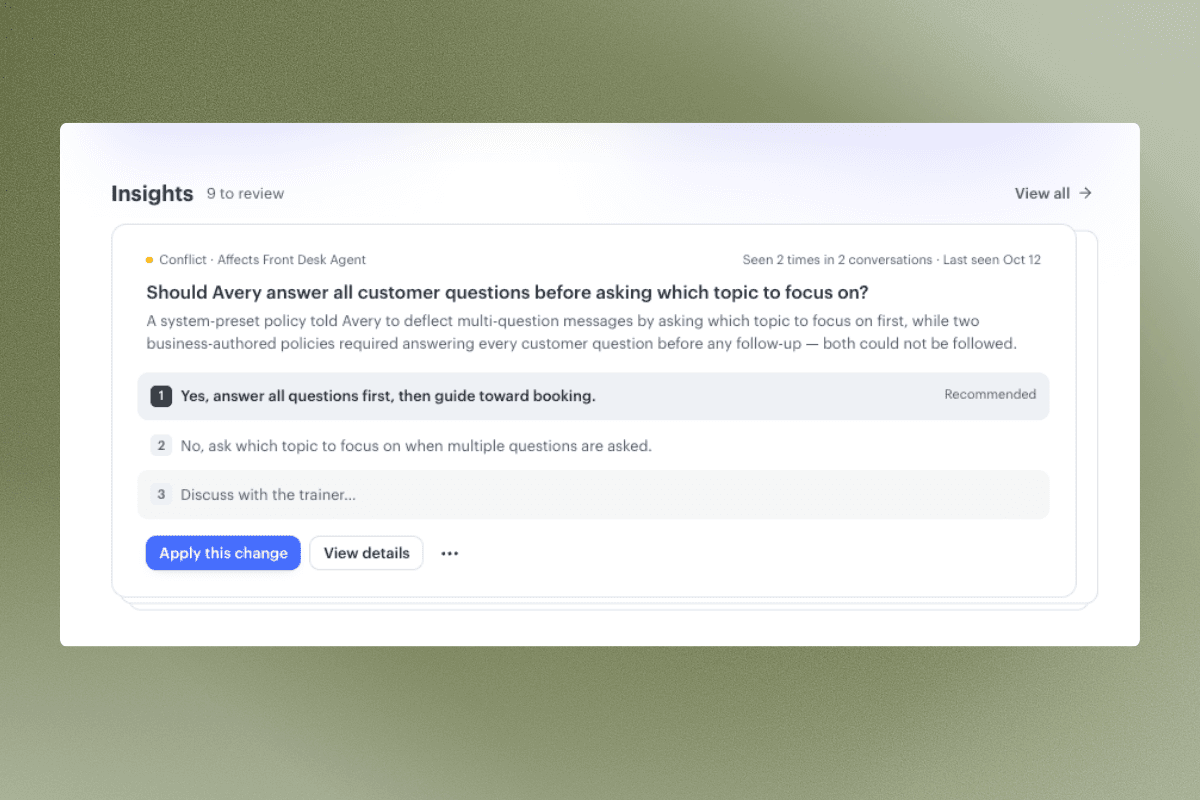
Avery Insights
Avery now flags conflicts in your playbooks and policies, like two rules that contradict each other, so she stops guessing which one to follow. View details on the conflict and the options to resolve with a recommendation. Click Apply This Change to update.
Where to find it in Podium: AI Studio > Insights
Two-Way Google Calendar Sync
Your Google Calendar now syncs both ways. Podium appointments still show up in Google, and events you add in Google now show up in Podium, so nothing gets double-booked.
Where to find it in Podium: Settings → Your profile → Calendar sync
Duplicate Bulk Emails
No need to rebuild campaigns from scratch. Duplicate any bulk email, tweak what you need, and send.
Where to find it in Podium: Bulk email → Hover over campaign you want to duplicate → Click (⋯) three dot menu → Duplicate
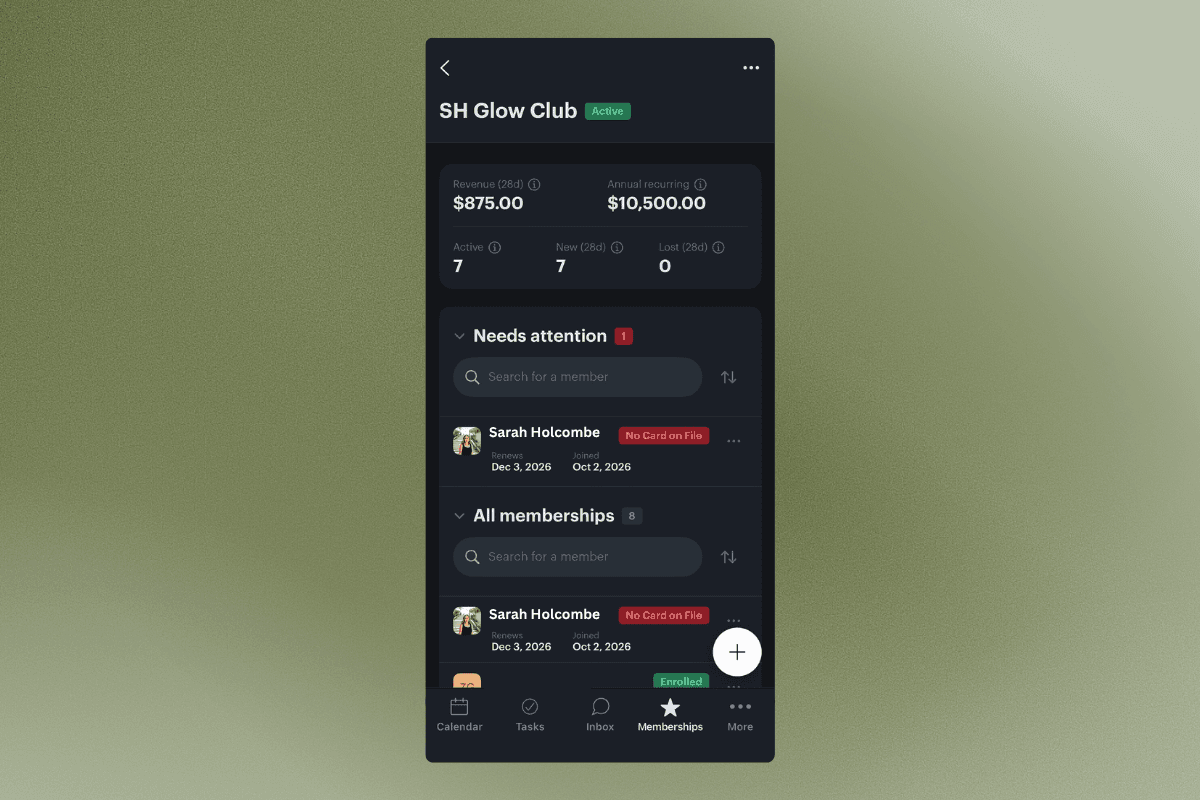
Memberships on mobile
Create plans, manage members, and enroll new ones without heading back to a desk. Enroll from a plan or straight from a client’s profile, and either charge the enrollment fee or set a future first payment date for members you’re migrating.
Where to find it in Podium: Memberships tab in the mobile app, or on a client’s profile under Wallet > Memberships
Packages on mobile
Build, view, and sell packages from your phone or iPad, including grouped services. To sell one on the spot, tap + on the calendar, choose Invoice, search the client, and add the package.
Where to find it in Podium: Packages tab in the mobile app
Inbound fax on mobile
See new faxes the moment they arrive, view them inline, and assign them to a client profile from anywhere. Anything you attach syncs to the client’s Files section on web and mobile. (Outbound faxing is not available on mobile yet)
Where to find it in Podium: Fax tab in the mobile app (requires eFax turned on)